Updated 25 October 2026. The marketing kit site no longer works as a separate tool. We've kept the history below and added what you can do today.
Google's marketing kit was a free way to turn your best Google reviews into posters, stickers and social posts. It started life as Small Thanks with Google. It was later renamed the Google My Business marketing kit, and then the Google Business Profile marketing kit when Google My Business became Google Business Profile in 2021.
Is the marketing kit still available?
Not as its own site. When we checked in October 2026, the old addresses (smallthanks.withgoogle.com and marketingkit.withgoogle.com) sent visitors straight to Google's main Business Profile page. There was no poster maker there.
So if you've searched for the kit and landed on Google Business Profile instead, nothing is wrong with your account. The tool has simply moved on.
What the kit used to do
The idea is still a good one, so it's worth knowing how it worked:
- You searched for your business by name. It needed a verified profile and some five-star reviews.
- Google suggested posters, each quoting one of your reviews. You could pick a style, layout and colour.
- You downloaded a zip file with print-ready posters, window stickers and images for social media.
During COVID-19 it also offered printable signs for things like "Takeaway or delivery only".
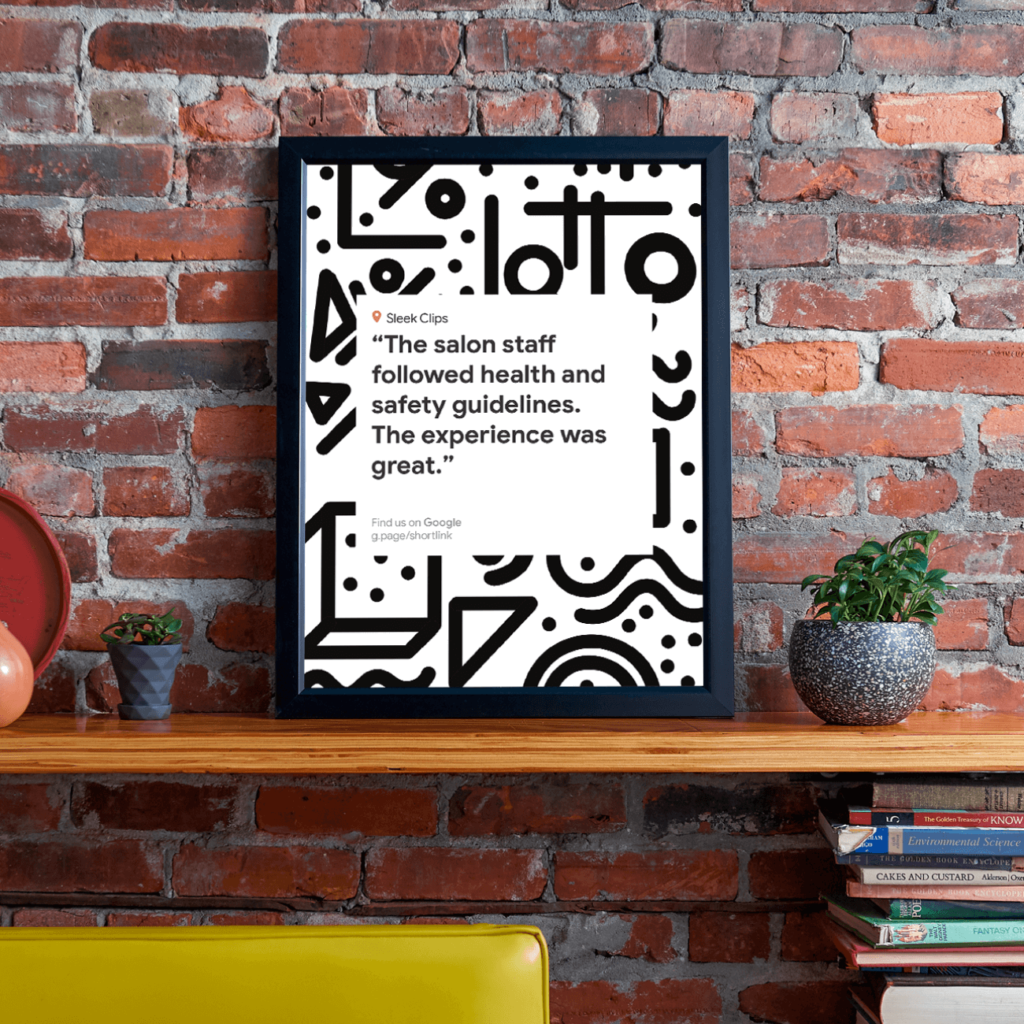
A poster made with the kit, before it was retired. Image courtesy of Google.
How to do the same thing today
You don't need the kit to show off your reviews. Here's a simple way to get the same result.
1. Pick your best reviews
Choose short, specific reviews that say what customers love. "The staff remembered my order" works better than "Great place". Only quote real reviews, word for word, and use the reviewer's name the way it appears on Google.
2. Make your own posters and social images
Use any design tool you like. Keep the quote large, add your business name and the star rating, and leave space for a QR code.
3. Add a review link or QR code
Google lets you create a link or QR code that takes customers straight to your review form. On a computer, open your Business Profile, select Read reviews, then Get more reviews. Copy the link, or save the QR code image. Google says the QR code can only be made in a computer browser, not on a phone.
Put the QR code on the counter, your receipts or your window, and add the link to thank-you emails.
One rule to remember: Google doesn't allow you to offer discounts or freebies in exchange for reviews. Ask every customer, and let them say what they think.
4. Share your reviews as Google posts
Posts are a free way to put a good review in front of people who are already looking at your profile. Rotate a few review quotes through your posts. Our guide to Google posts shows how.
Need more reviews to choose from? Read how to ask for Google reviews.
Doing this across many locations
If you run more than a handful of locations, finding the best reviews and keeping on top of new ones takes time. Local Intelligence brings every location's Google reviews into one inbox, and lets you publish Google posts to every location from one screen. On Premium you also get review QR codes and an email template for asking customers.
You can start with the Free plan and a free audit of every location. See pricing for the plans.